
Last updated: May 28, 2026
Everything you need to set up your agency and start serving clients.
Senior Simple helps Medicare insurance agencies collect verified healthcare data from clients, compare available Medicare Advantage and Part D plans against that data, and keep everything in sync with your CRM. This guide walks you through setting up your agency, inviting clients, and using every feature.
What is Senior Simple
Agencies collect verified healthcare data (doctors, hospitals, pharmacies, medications) from clients through secure, mobile-first intake forms, then sync that data to their CRM.
Who it's for: licensed Medicare agencies and their agents serving clients during the Annual Enrollment Period (AEP) and Special Enrollment Periods (SEP).
Getting started
- Create your agency account.
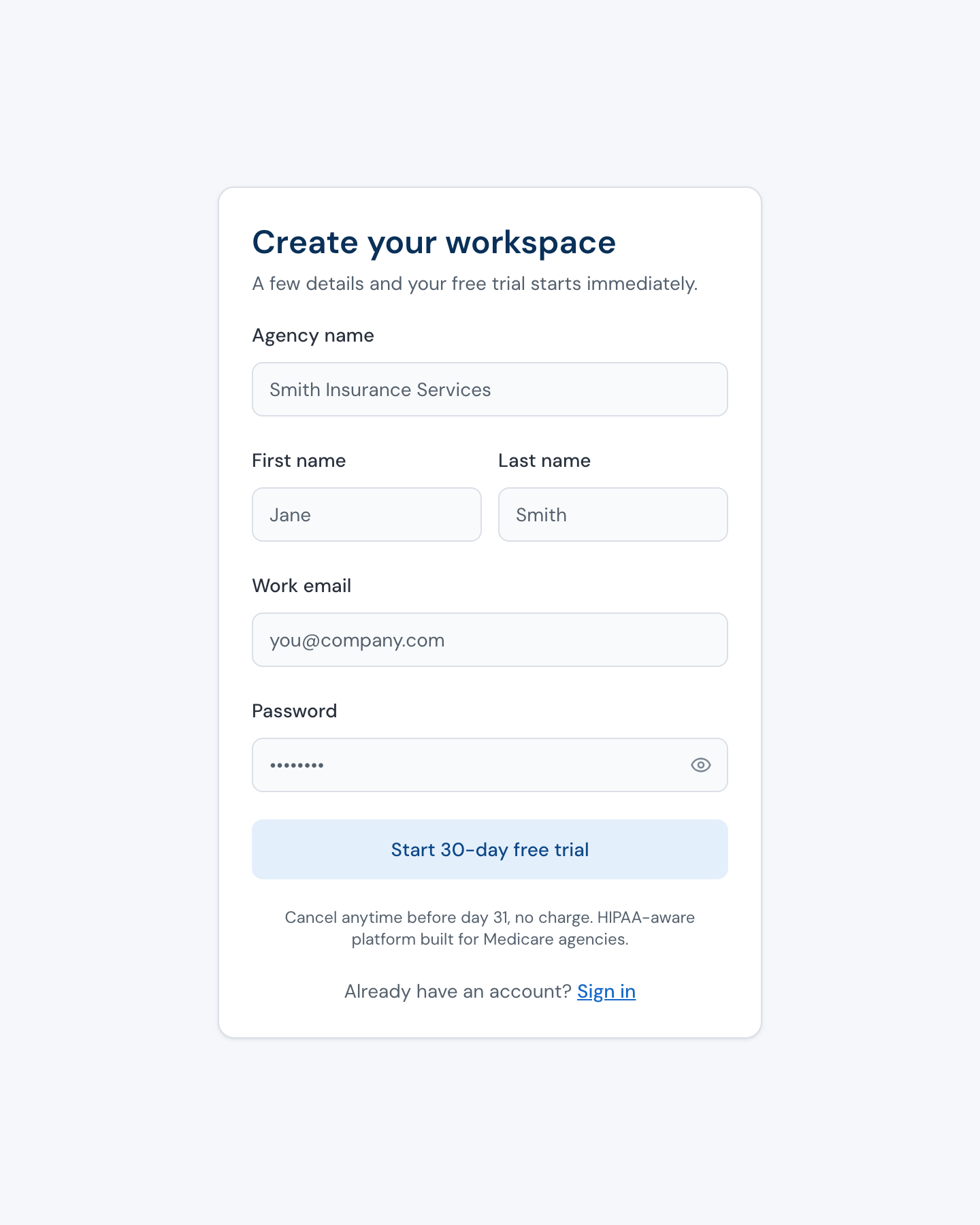
- Verify your email.
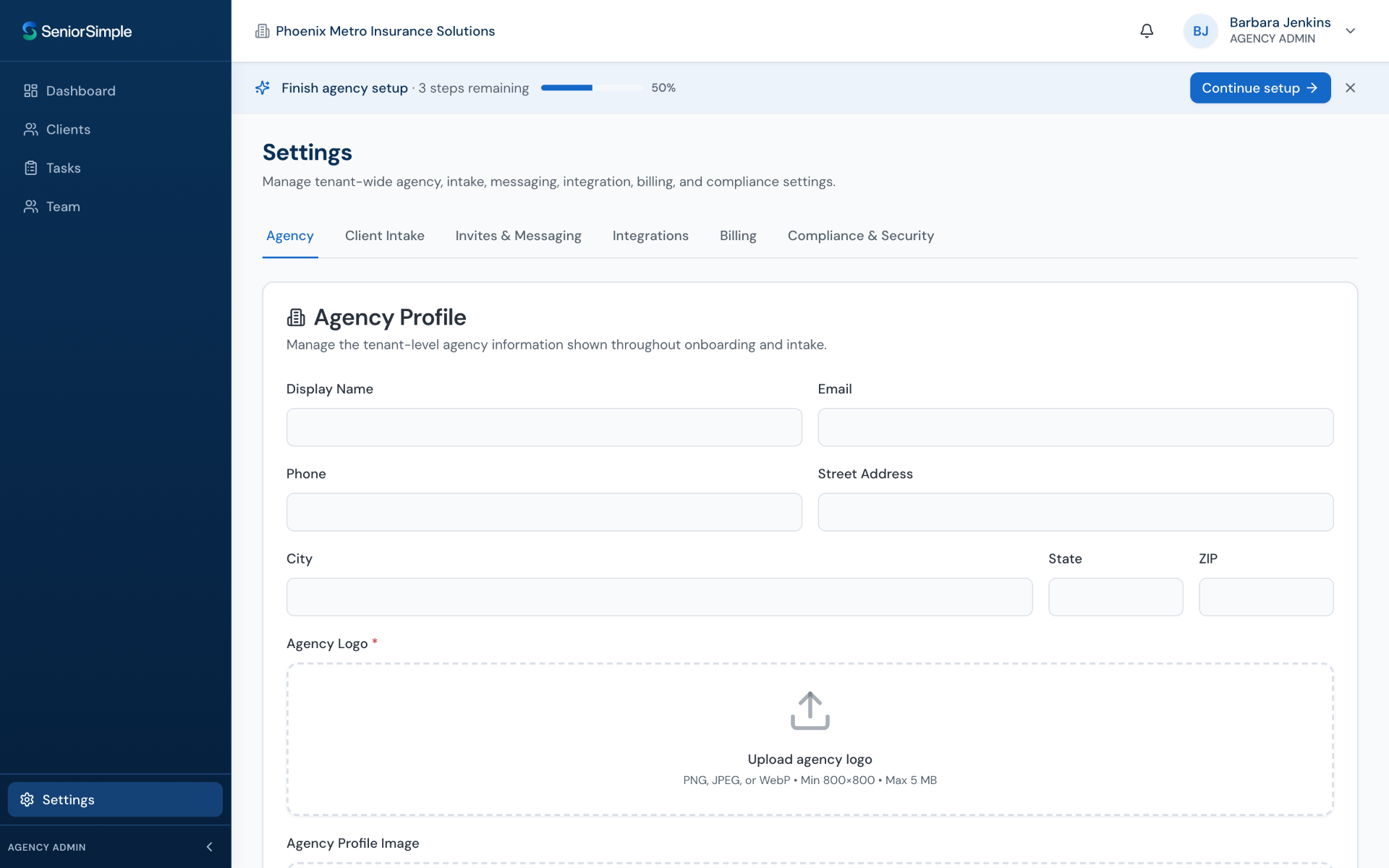
- Complete your agency profile — display name, logo, contact phone, and email. A complete profile is required before you can send client invites.
- Invite your team and assign roles — Admin, Agent, or Staff.
Adding and managing clients
- Create a single client (first name, last name, date of birth, phone, address).
- Import existing clients in bulk from your connected CRM (filter by tag), or by uploading a file.
- The client list lets you search, filter by status, and open a client to see their healthcare selections, submission history, and invite history.
- Roles and visibility: Admins see all clients; Agents see their assigned clients; Staff have read-and-paperwork access for the agents they support.
Sending intake invites
- Generate a secure invite link for a client and send it by email or text message.
- Links are unique per client and expire after a set window (or once the client submits).
- Resend or regenerate a link if it expires.
- Clients verify their identity (last name + date of birth) before they can open the form — no account or password required.
The client intake experience
What your client sees:
- A mobile-first form with large touch targets and plain language, designed for seniors.
- Steps: privacy acknowledgment, permission to contact, scope of appointment, address, then selecting their doctors, hospitals, pharmacies, and medications via typeahead search.
- A "can't find it" option for anything not in the list, which is flagged for your review.
- Progress is saved at each step and can be resumed within the invite window.
Connecting your CRM
Senior Simple connects securely to your CRM so your contacts and your clients' verified healthcare data stay in sync, and so you can send invites without leaving your workflow.
How to connect
Go to Settings → Integrations and choose "Connect CRM," then authorize the connection and select the account or location you want to link.
What the connection does
- Keeps contact details (name, phone, email, address) in sync between your CRM and Senior Simple. Your CRM remains the source of truth for contact identity. Senior Simple can update CRM contact fields when needed, but only with an explicit on-screen warning and confirmation before any change is written back.
- Automatically creates a small set of custom fields in your CRM to store each client's verified doctors, hospitals, pharmacies, and medications — no manual setup needed.
- Writes each client's completed intake back onto the matching contact, and adds a short summary note.
- Lets you send secure intake-invite links to clients by text message through your CRM.
- Stays current in real time when a contact is created, updated, or removed in your CRM.
Disconnecting
You can disconnect anytime from Settings → Integrations. Disconnecting stops syncing; any data already written to your CRM is left in place.
Staying compliant
- Built-in Scope of Appointment (SOA) and Permission to Contact (PTC) capture, with electronic signature, saved with the client record and valid for 12 months.
- Privacy-policy acknowledgment is collected from clients and versioned.
- Required marketing disclaimers are included on client-facing communications.
Account and billing
Manage your subscription, payment method, and invoices in Senior Simple under Settings → Billing.
Security and privacy
- Each agency's data is isolated — one agency can never see another agency's clients.
- Connections to your CRM are authorized securely, and incoming updates are cryptographically verified before they are applied.
- Healthcare data lives in Senior Simple; we write it into your CRM's custom fields but treat Senior Simple as the system of record for it.
See our Privacy Policy and Terms of Service for details.
Troubleshooting
I can't send invites yet
Complete your agency profile (name, logo, phone, email) first.
A client's invite link expired
Regenerate and resend it from the client's page.
The CRM custom fields didn't appear
Re-run the connection setup from Settings → Integrations.
A contact isn't syncing
Confirm the contact exists in the connected account and has a phone or email.
I can't send invites by text
Confirm your connected account has text messaging configured.
A client couldn't find their doctor or medication
They can use "can't find it"; the entry is flagged on the client's page for you to match or review.
Need a hand?
Our support team can help you get set up and get the most out of Senior Simple.
Contact support or email support@seniorsimple.io